


.svg)

.png)
Tagging people on LinkedIn can be one of the simplest ways to increase your post's visibility and engagement. When used well, it helps you acknowledge others, start meaningful conversations, and get your content in front of new audiences.
However, not every tag is a good tag. Tagging people who are not relevant to your post can hurt your credibility and reduce the chances of engagement.
In this guide, you will learn exactly how to tag people on LinkedIn step-by-step, why tagging matters for your LinkedIn reach, and how to follow best practices in 2026. You will also see real examples, common mistakes to avoid, and advanced strategies to make tagging a natural part of your content plan.
How to Tag Someone on LinkedIn
To tag someone on LinkedIn, type the @ symbol followed immediately by their name in a post or comment, then select the right profile from the dropdown. The tag becomes a clickable link and notifies the person, whether you're connected or not (as long as they haven't disabled mentions in their privacy settings). You can tag up to 25 people in a single LinkedIn text post and up to 30 people in a photo post. The same @-mention works in LinkedIn posts, comments, captions, and articles. If you want a visual of how tags can change a post's reach, see why tagging matters for LinkedIn engagement in the next section.
Tagging on LinkedIn is straightforward once you know where to look and what to click. Here is a clear step-by-step process you can follow:
1. Start your post or comment
From your LinkedIn homepage, click "Start a post" to open the post editor. You can also tag people when writing a comment or replying to an existing comment.
2. Type the "@" symbol
Place your cursor where you want the tag to appear and type the "@" symbol. Do not add a space before it.
3. Begin typing their name
After typing "@", start entering the person's name. LinkedIn will automatically show a dropdown list of matching profiles.
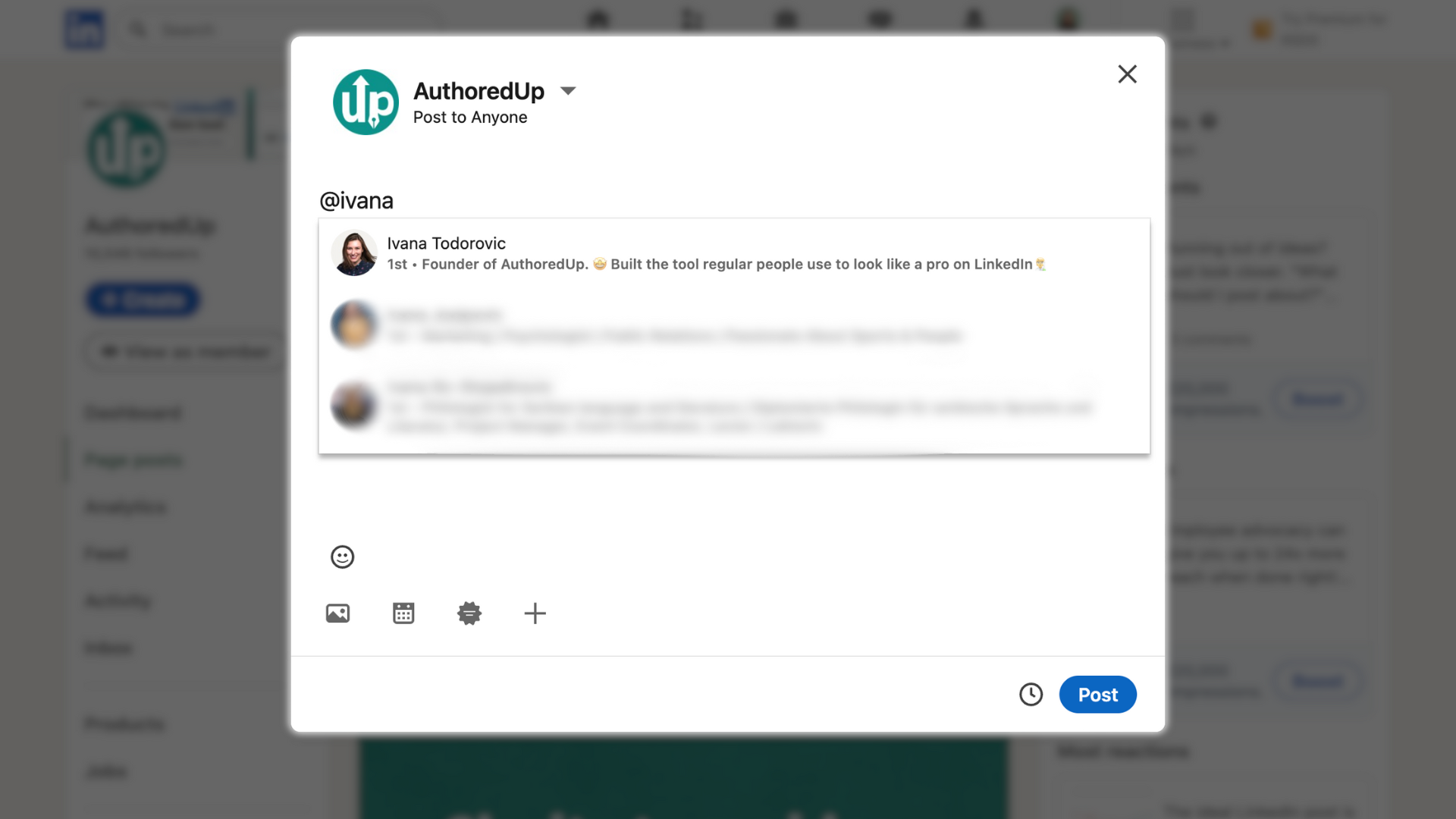
4. Select the correct profile
Click on the right person or company from the suggestions. Their name will instantly turn into a clickable link in your post draft. On mobile, you may need to tap the suggestion to confirm.
5. Continue writing your post
Once the tag appears, you can keep typing the rest of your message. The tagged name will stay highlighted as a link.
6. Publish your post or comment
When you are ready, click "Post" or "Comment". The person or company you tagged will receive a notification letting them know you mentioned them.
Here are some extra tips for better tagging:
- You can tag both individual profiles and company pages.
- Place your tags in the main body of your LinkedIn post rather than at the very end for better visibility.
- If a person cannot be tagged, it might be due to their privacy settings or because you are not connected.
💡Pro tip
With AuthoredUp, you can take tagging even further. Both the platform and the browser extension fully support mentions, so you can easily tag people and company pages as you write. The best part is that your mentions stay saved inside drafts.
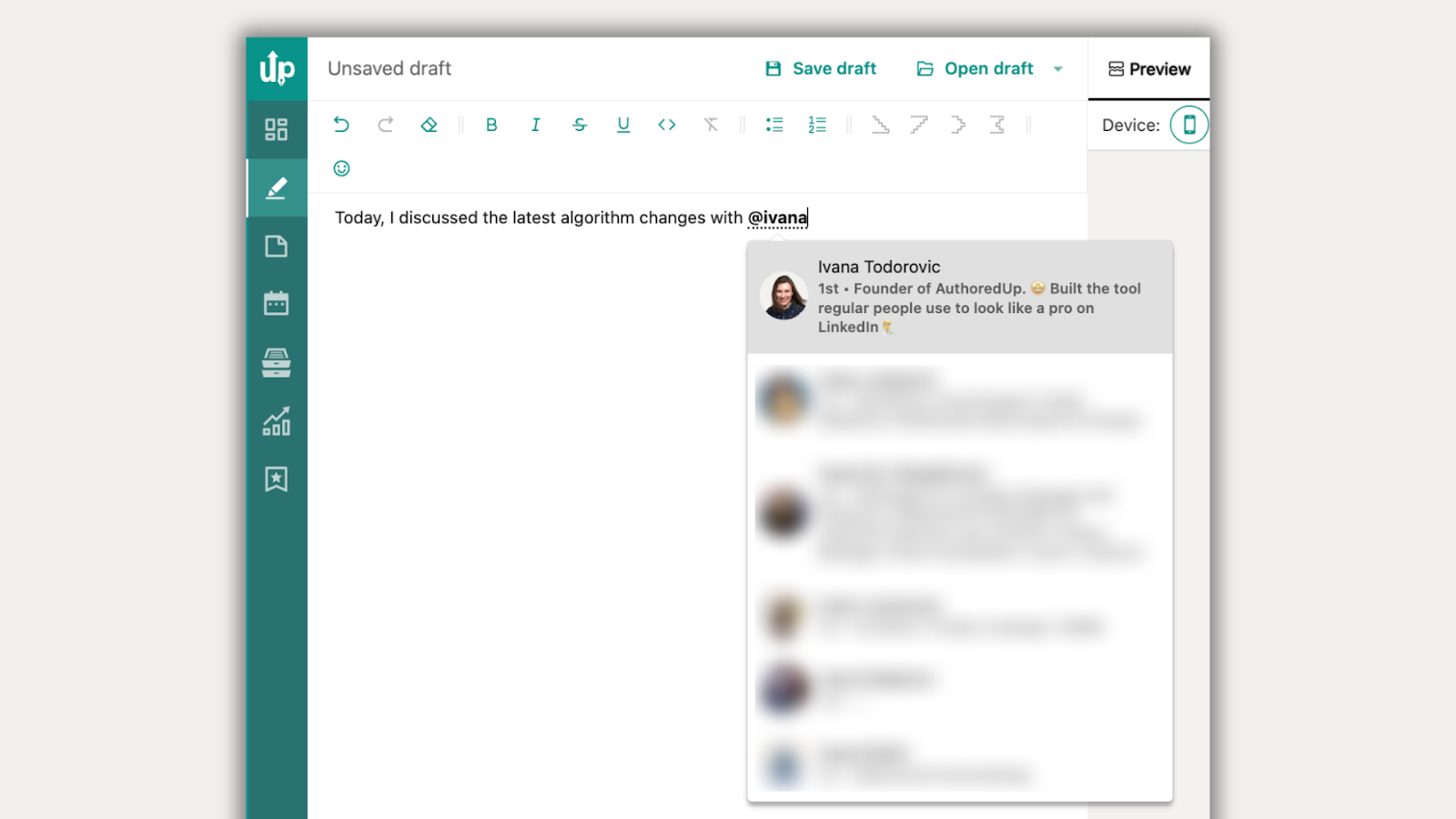
That means even if you are not ready to publish right away, every tag you added will remain exactly where you placed it when you come back later.
This makes it simple to draft, edit, and schedule posts without losing any of the tagging work you already did.
How to tag someone after publishing a LinkedIn post
LinkedIn doesn't let you add new tags to a post after it's published. You can edit the text, fix typos, and adjust formatting, but the @-mention dropdown isn't available in post-edit mode. Three workarounds:
1. Tag them in a comment. Drop a top-level comment on your own LinkedIn post that begins with the @-mention. The tagged person gets a notification, the link works, and the comment surfaces near the top of the thread.
2. Repost as a quote-post. Use the Repost with your thoughts option on your own post to re-share it with new tags in the quote. This effectively re-publishes the message with the missing tags, though the engagement starts fresh.
3. Delete and republish. Heavy-handed but sometimes the right call when the missing tag is important (e.g., a featured guest, a co-author). Copy the post text, delete the original, paste it into a new post, add the @-mention, and publish. You lose the original's reactions and comments, so this is only worth it within the first hour or so before the post has accumulated meaningful engagement.
For photo tags specifically, you can sometimes edit a photo's tags after upload through the photo's Edit photo menu, but this only applies to the photo itself, not the surrounding post text. See LinkedIn's official help on tagging in photos for the current photo-tag flow, and our guide on how to post multiple photos on LinkedIn for the wider photo workflow.
Why Does Tagging Matter for LinkedIn Reach
Tagging on LinkedIn is more than just a way to mention someone's name.
It is a simple action that can have a big impact on your content's reach and your professional relationships.
When you tag someone, your post can appear in their network's feed as well as your own. This opens the door to new audiences who may never have seen your content otherwise.
If the tagged person engages by liking, commenting, or sharing, the LinkedIn algorithm takes it as a positive signal and shows the post to even more people.
Tagging can also build credibility. Mentioning relevant experts, collaborators, or companies shows you are connected and active in your industry. It helps position you as someone who is engaged in meaningful conversations rather than broadcasting in isolation.
There is also a relationship-building benefit. Publicly acknowledging someone's contribution or insight can strengthen professional ties. It gives recognition where it is due and can encourage reciprocation.
However, tagging works best when it is relevant. Random or excessive tagging can be seen as spammy and may have the opposite effect, reducing engagement and trust.
LinkedIn Tagging Tips for 2026
Tagging is most effective when it feels relevant, intentional, and respectful. Following good etiquette ensures your tags are welcomed rather than ignored.
1. Tag only relevant people
Before adding a tag, ask yourself if the person is directly connected to the topic of your post. Tagging people who have no link to the content can appear self-serving and reduce trust.
2. Provide context for each tag
Do not just insert a name. Explain why you are mentioning them. This makes the tag feel like genuine recognition rather than a tactic to boost LinkedIn reach.
3. Keep the number of tags low
Quality matters more than quantity. Tagging one to three people in a LinkedIn post is often enough to create meaningful engagement without overwhelming the reader.
4. Include both people and company pages when appropriate
Sometimes tagging both an individual and the organisation they represent can help you reach multiple networks.
.png)
5. Respect privacy and preferences
If someone cannot be tagged, it may be because they have disabled the option in their settings. Avoid workarounds to force a mention.
6. Avoid "tag lists" with no explanation
Placing a string of names at the end of a post without any context can look like spam and discourage interaction.
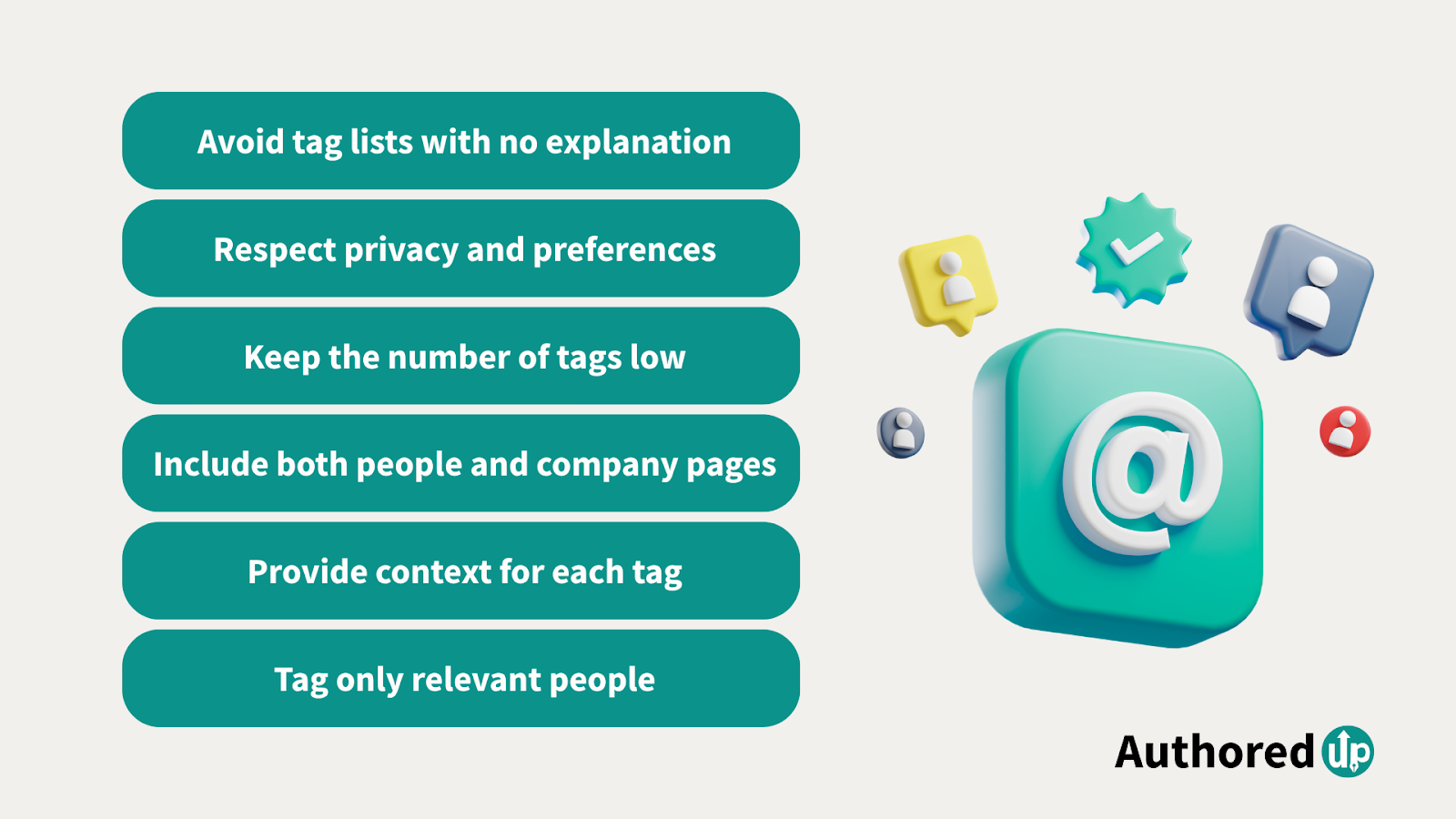
When you follow these guidelines, your tags are more likely to be seen as thoughtful contributions to the conversation. This not only improves your chances of engagement but also helps you build stronger professional relationships on LinkedIn.
Examples of Great Tagging
Multiple Mentions in the Main Post
.png)
Moutaz used mentions to acknowledge specific individuals who supported his journey and contributed to his business growth. The mentions serve both as recognition and as a way to bring those people into the conversation.
Why it works:
- Mentions are relevant to the story being told
- Recognises contributors in a public and meaningful way
- Encourages engagement from the tagged individuals and their networks
Referencing Experts in a Content Piece
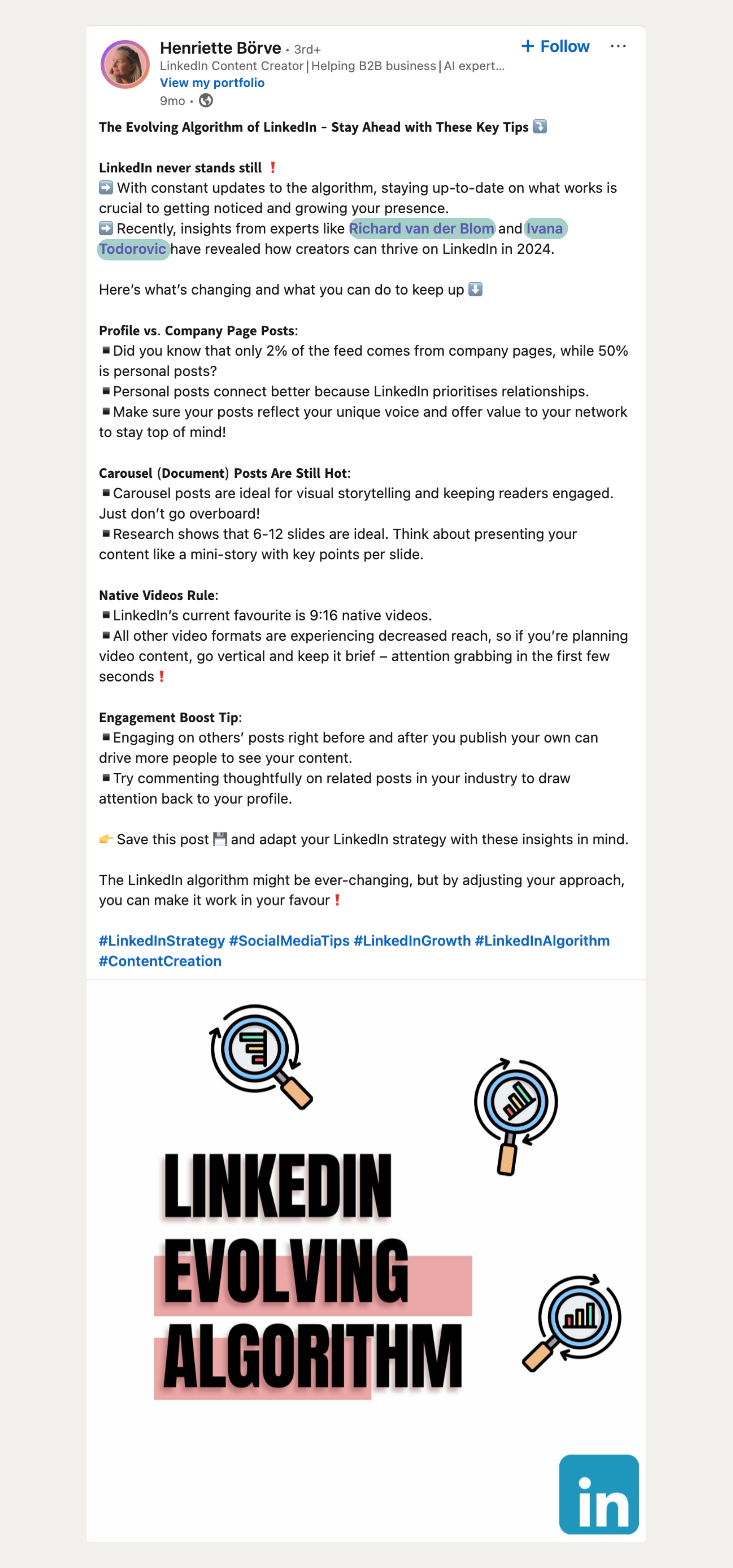
Henriette mentioned industry experts while discussing LinkedIn algorithm updates. This adds authority to her insights and shows that she is connected to knowledgeable voices in her field.
Why it works:
- Mentions credible experts to strengthen the post's value
- Positions the writer as informed and connected in her niche
- Increases the chance of comments and shares from the tagged experts
Mentioning in the Comments
.png)
Jasmin used a mention in a comment to credit a tool that provided analytics for his LinkedIn activity. This is a simple but effective way to add context and show appreciation without making it the central focus of the post.
Why it works:
- Adds value to the comment by referencing the tool directly
- Creates a clickable path for readers to explore the mentioned brand
- Keeps the engagement within the comment thread relevant and useful
Here is another great example:
.png)
Paul used a mention in a comment to directly invite a specific person into the discussion. This approach personalises the conversation and increases the likelihood of getting a response.
Why it works:
- Directly addresses a person, making the comment feel more intentional
- Encourages engagement by prompting the tagged person to share their opinion
- Increases visibility for the discussion by notifying the mentioned individual
Mistakes to Avoid When Tagging
Even with good intentions, tagging can backfire if it is done carelessly. Avoiding these mistakes will help keep your mentions effective and well-received.
1. Tagging without reading or checking the content
If you are sharing an article, video, or post, make sure you have read or watched it first. Tagging someone in content that misrepresents their work or views can damage trust.
2. Using tagging as a replacement for engagement
Simply tagging someone without commenting on their work or contributing to the conversation makes the interaction feel one-sided. Engagement should include both tagging and thoughtful participation.
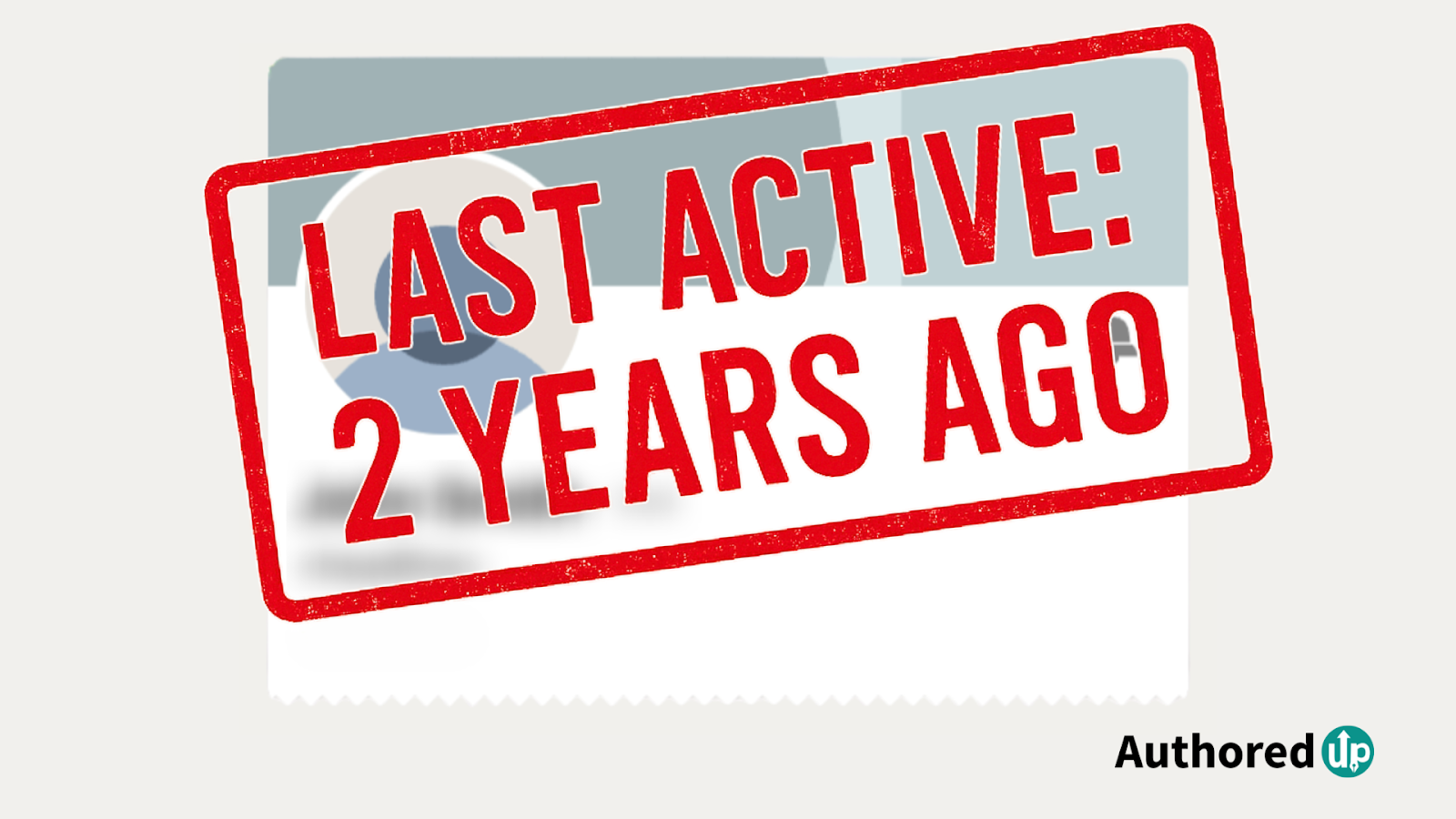
3. Tagging inactive or outdated profiles
If the person rarely uses LinkedIn or has moved to a new role, the tag may go unnoticed. Check that the profile is active before including it.
4. Tagging in private or sensitive contexts
Not all work, events, or achievements are meant for public discussion. Consider whether the person would want the mention to be seen by their entire network.
5. Forgetting to follow up after tagging
If you tag someone and they comment or react, acknowledge it. Failing to respond can make the tag feel transactional rather than conversational.
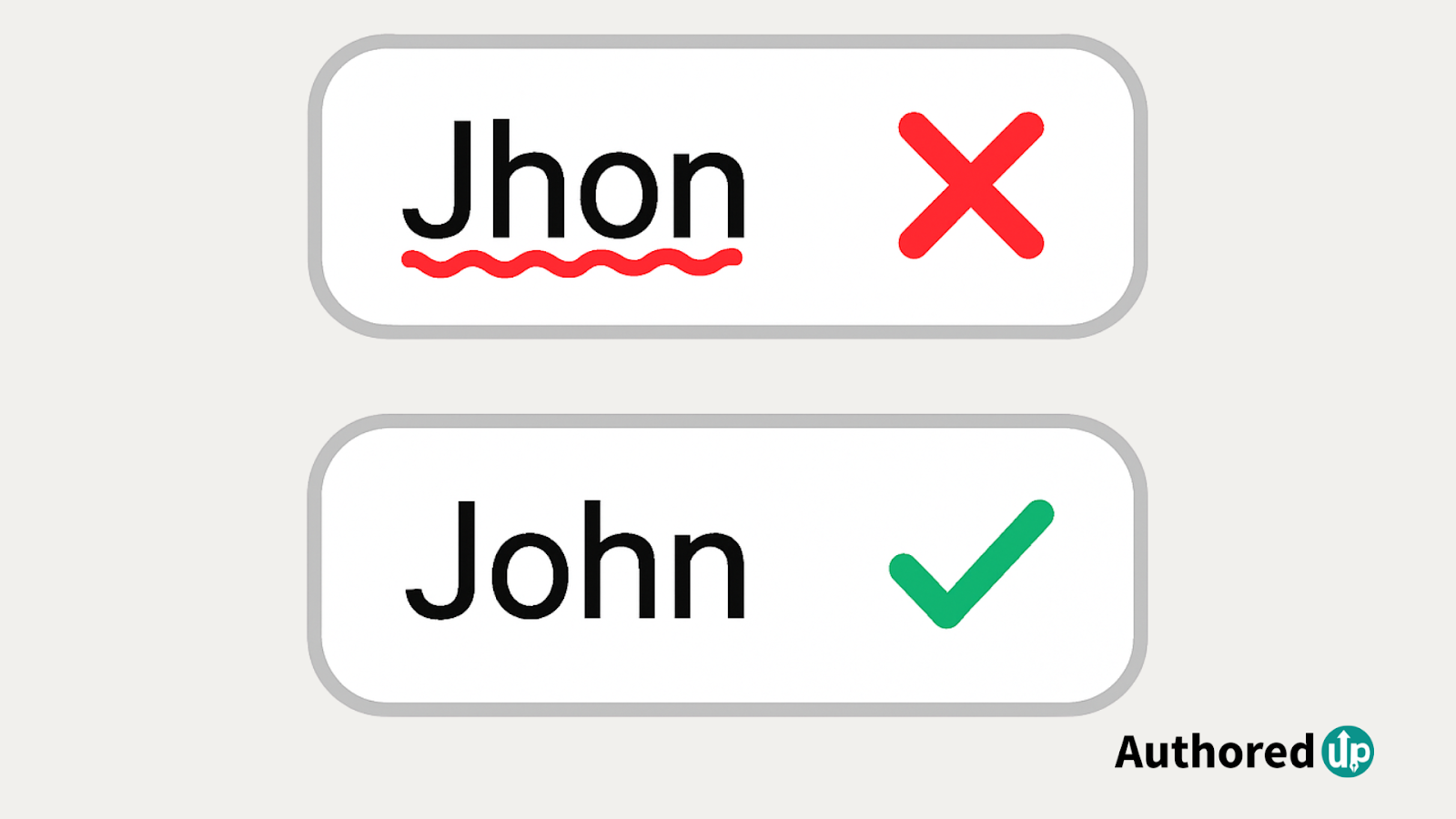
6. Overlooking spelling and accuracy
Misspelling a name or tagging the wrong profile can be embarrassing and reduce the professionalism of your post. Always double-check before posting.
By avoiding these mistakes, you ensure that your tags contribute positively to both the conversation and your professional reputation.
How AuthoredUp Can Help You Tag More Effectively
Tagging works best when done strategically. AuthoredUp lets you actually build posts around mentions. You can draft posts with mentions, save them for later, and be confident every tag stays exactly where you put it. No need to retype names or worry about LinkedIn dropping them, your mentions are locked in until you're ready to publish.
On top of that, AuthoredUp gives you the tools to line up everything else so a tag is effective:
- Format your post so mentions stand out clearly.
- Schedule content for the times when tagged people are most active.
- Get reminders to warm up the conversation before posting.
- Use best time to post data to make sure your mentions get maximum visibility.
Put together, this means you are not just tagging for the sake of it. You are tagging strategically, at the right time, in the right format, and with the best chance of getting seen.
If you want to compare the native LinkedIn flow against AuthoredUp's tagging-aware editor, LinkedIn's official help on @mentions documents the LinkedIn-side behavior, and AuthoredUp itself installs from the Chrome Web Store. You can try the formatting and preview side of the workflow without an account. For a deeper look at the preview flow specifically, see our LinkedIn post preview tool.

FAQ
Why won't LinkedIn let me tag someone in a post?
If tagging is not working, it could be due to several reasons. The person may have disabled tagging in their privacy settings, or you may not be connected closely enough for the tag to appear. Sometimes, tagging fails if the name is typed incorrectly or if you try to tag too many people in one post. Technical glitches on LinkedIn can also temporarily affect tagging, so checking again later may solve the issue.
Can I tag people on LinkedIn if we are not connected?
Yes, it is often possible to tag people outside your immediate network, especially if their profile is set to public. However, if they have chosen more restrictive privacy settings, LinkedIn may block the tag. Company pages and public figures are typically easier to tag than private individuals.
How many people can you tag in a LinkedIn post?
In a photo post, you can tag up to 30 people per image. If your post includes multiple images, you can tag 30 people in each one. In a text-based LinkedIn post, the limit is 25 mentions.
While these limits are fairly high, best practice is to tag fewer than 5 people in any post and to make sure each tag is relevant to the content. Tagging too many people, even if allowed, can appear spammy and reduce the likelihood of engagement. Keeping tags focused helps your mentions add value and encourages genuine interaction.
Is it better to tag or mention on LinkedIn?
On LinkedIn, tagging and mentioning are the same action. Typing "@" followed by a name creates a clickable mention that sends a notification to the tagged person or company. The key to success is not the method but the relevance of the tag.
Should I tag people without asking first?
You do not need explicit permission to tag someone on LinkedIn, but courtesy matters. Only tag people when they have a clear connection to the post. This prevents your tag from being seen as unwanted attention-grabbing and increases the likelihood they will engage.
Does tagging people on LinkedIn increase reach?
Yes, when done thoughtfully. Tagging relevant individuals can help your post appear in their network's feeds, giving it greater visibility. The boost is strongest when the tagged person interacts with your post, as LinkedIn's algorithm prioritises content that sparks conversation.
How do I enable or control tagging on my own LinkedIn profile?
LinkedIn lets you control who can tag you and how those tags appear on your profile.
On desktop: Go to Me → Settings & Privacy → Visibility → Visibility of your activity. The setting "Mentions or tags by others" controls whether other people can @-mention you in their posts. Setting it to No removes you from the search dropdown when someone tries to tag you. Setting it to Yes (the default) keeps you taggable.
On mobile: Your photo → Settings → Visibility → Mentions or tags by others (same toggle).
Two notes worth knowing:
- Disabling mentions doesn't retroactively remove existing tags. It only blocks new ones.
- You can also approve or reject specific photo tags through the notification you receive when someone tags you in a photo. There's no equivalent approval step for text-post tags; they go live immediately.
If you're not getting notifications about tags, check Settings & Privacy → Communications → Notifications → Mentions to make sure the notification channel is enabled.
For the broader set of profile settings that affect your post visibility and engagement, see LinkedIn post best practices.
.svg)
.png)

.svg)
.png)
.png)