


Write, plan and check with AuthoredUp MCP.
Connect Claude or ChatGPT to your LinkedIn posts and numbers. Ask what worked, draft the next post, plan the month. MCP comes with every plan, free trial included.
Connect your AIFrom people who use it
They connected it in the first weeks. This is what they say.
Taken from their public LinkedIn posts. Each quote links to the post.







What you can do with it
Ask what worked, then write the next post with it.
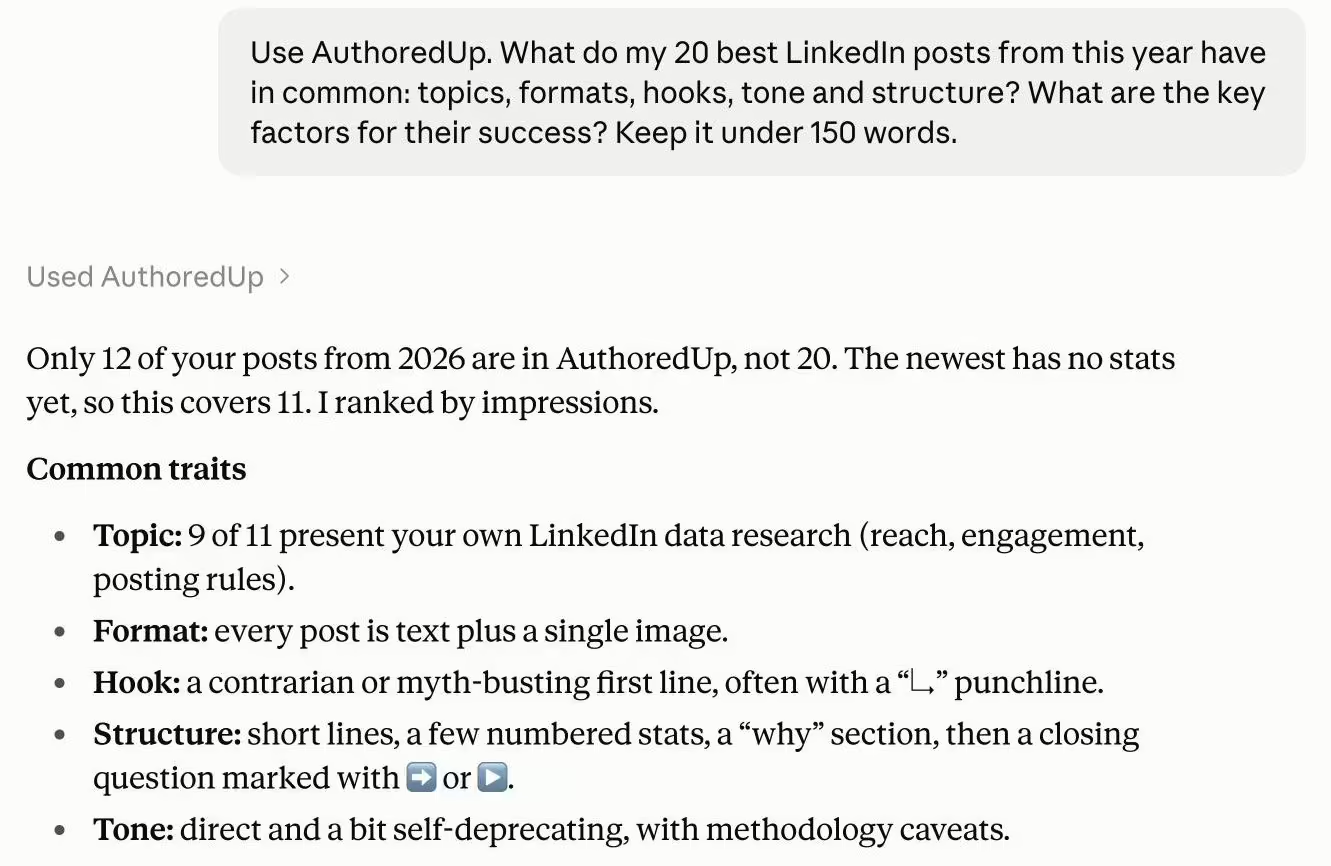
Understand what worked, and what changed
See which of your posts brought the most saves, sends or new followers, and what they have in common. Check why one dropped. Your AI reads the text next to the numbers, so the answer names the hook, the length, the format and the day.
Your follower history is there too: find out which posts moved it this quarter, and which months were flat.
Decide what to post next
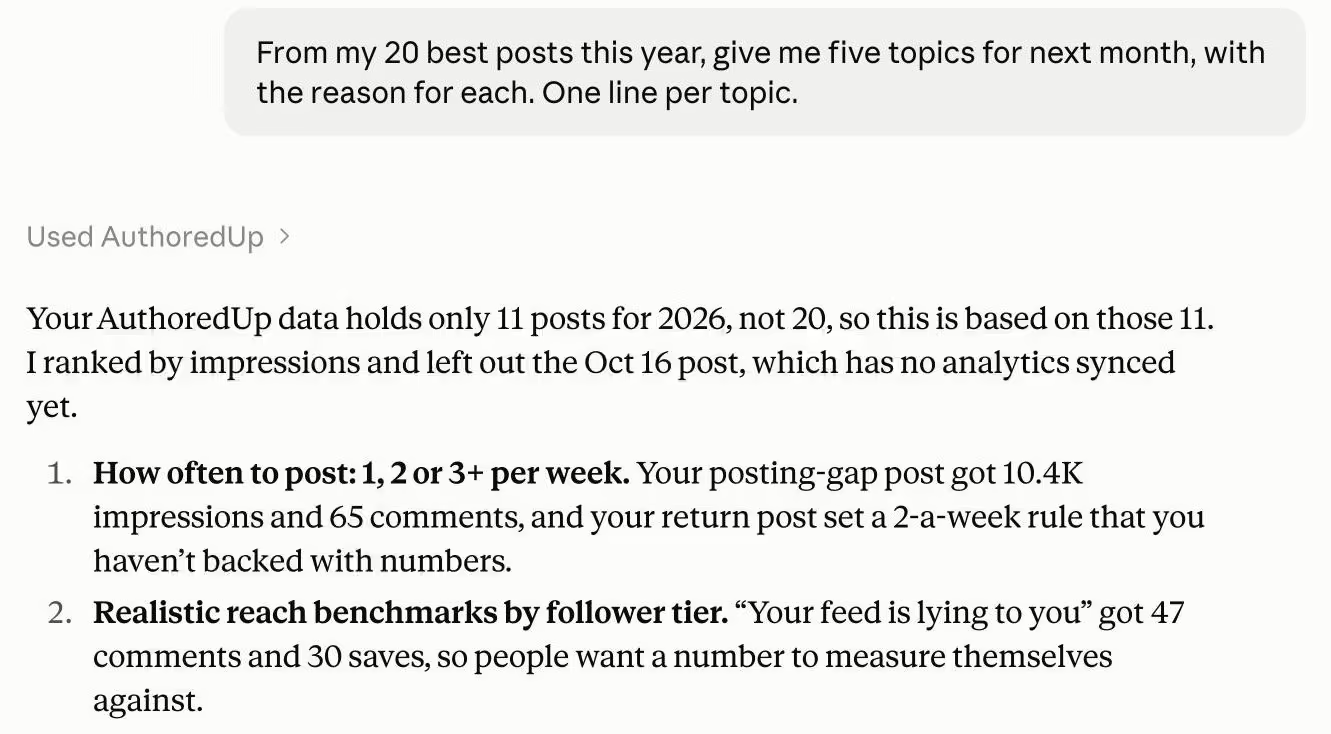
Ideas come from your own best posts and from the LinkedIn posts you saved, which it searches by topic.
Get next month's topics with the reason for each, or the angles you have not used yet.
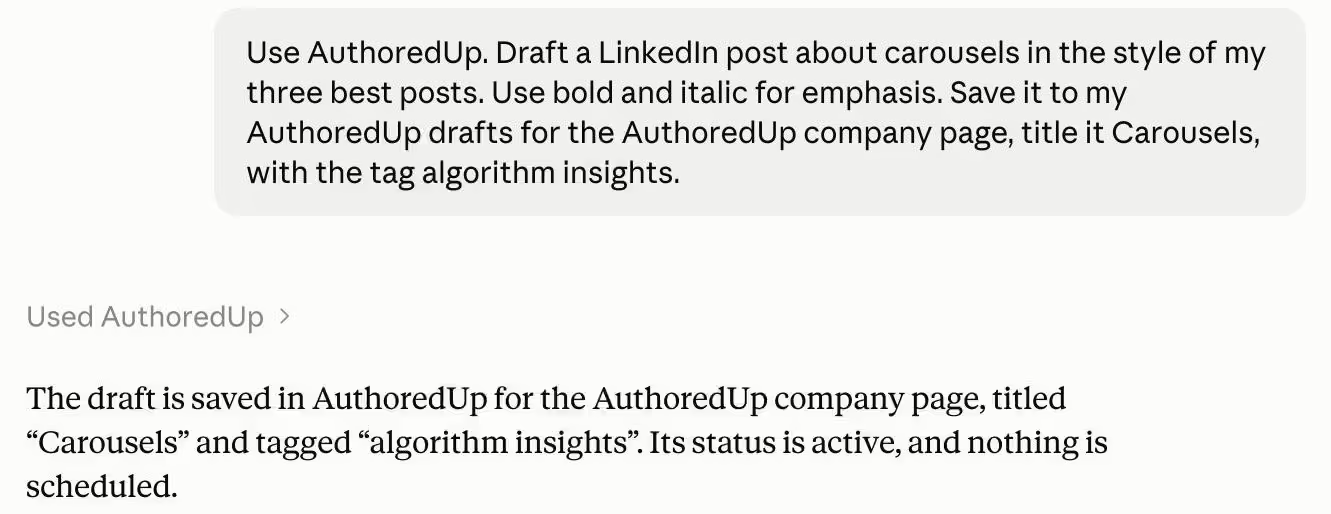
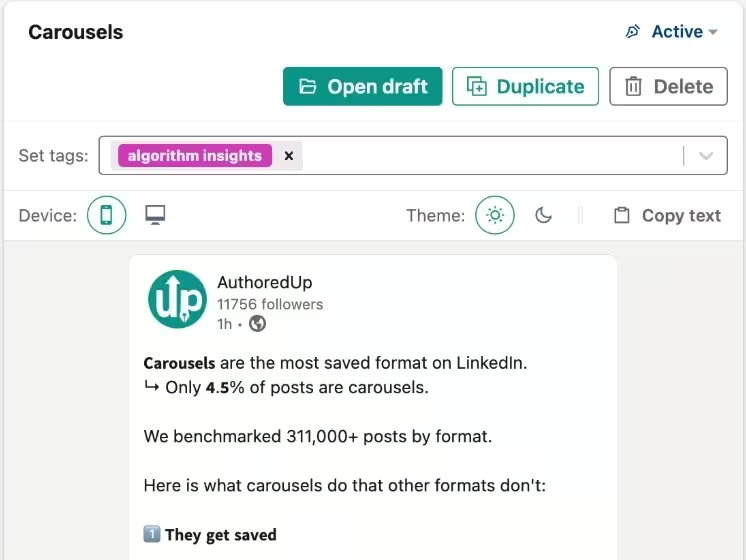
Draft it in your voice, or repurpose a winner
Ask for a draft in the style of your best posts, or point it at last year's winner and have it rewritten for this month. The draft lands in your AuthoredUp drafts with its formatting, @-mentions, tags, a planned time and a reminder.
Plan a month of posts in one sitting. Then you preview each one and publish it from LinkedIn, logged in as yourself.
Improve a draft with insights from your own data
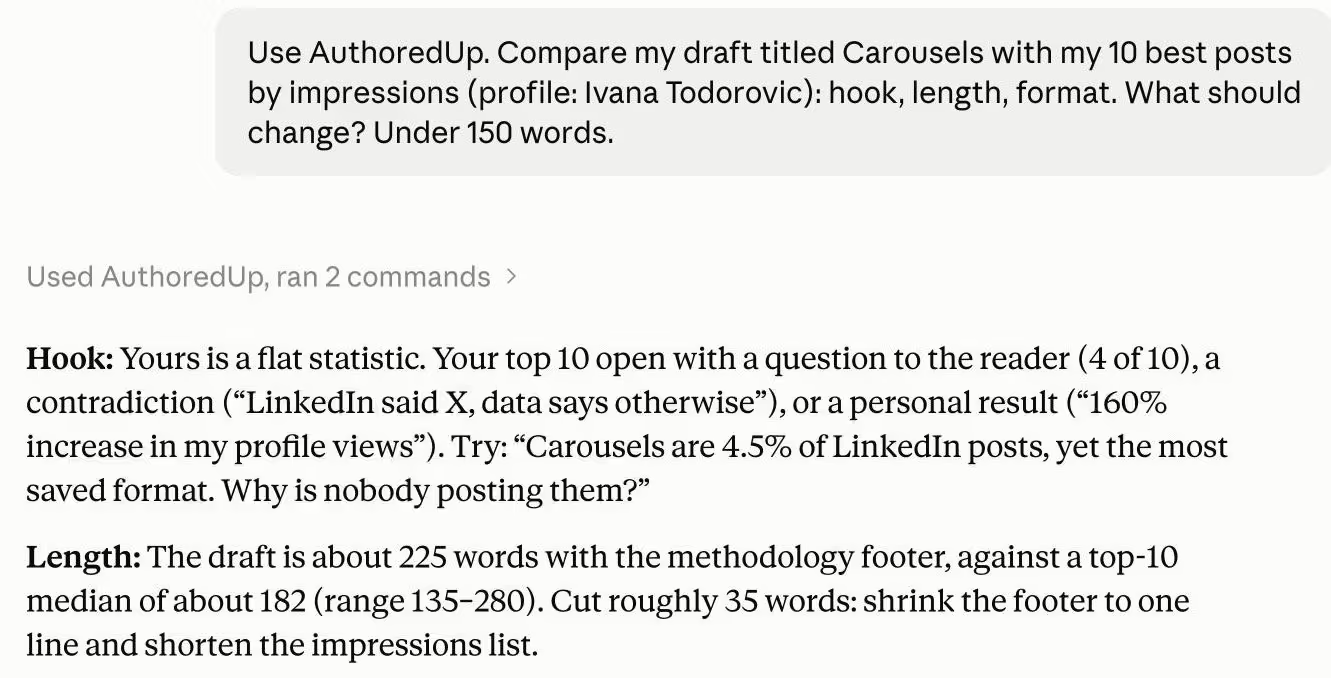
Give your AI a draft you already have. It compares the hook, the length and the format with your top posts, says what to change and why, and rewrites the draft in AuthoredUp.
The length, reading time and readability grade of every past post are in the data it reads, so the advice comes from what worked for you. You can also share a draft with teammates, or improve one they shared with you.
Turn the month into a report or slides
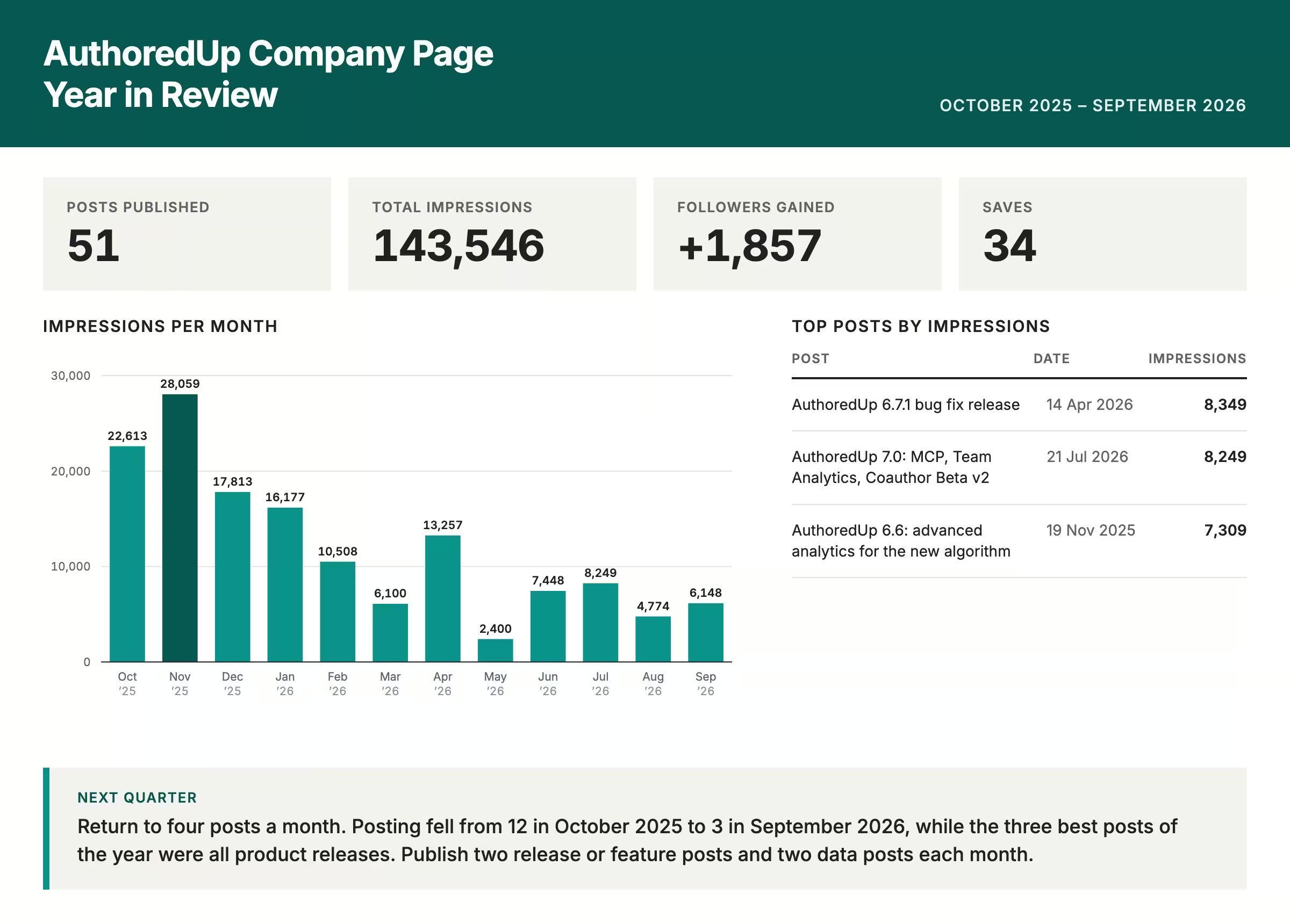
Posts, reach, the best post and a recommendation, written from your own numbers. Ask for the monthly review, the slides for your next check-in, or any analysis you want to see. It works the same for a company page you own.
Run a team? Pull the numbers for everyone and get the answers: who posted the most, who grew, and what to tell management. Agencies get the same answer, client by client.
Try it yourself
Talk to your AI like you would with a teammate.
Copy a question, paste it into Claude or ChatGPT, and get an answer from your own posts.
Questions about AuthoredUp MCP
Add AuthoredUp to Claude or ChatGPT
Find AuthoredUp in their directory, add it, then sign in with your AuthoredUp account.
Claude
The AuthoredUp connector in Claude's directory.
ChatGPT
The AuthoredUp plugin in ChatGPT's directory.
Using another AI tool?
Paste this server address into any tool that supports MCP.
Server address
https://backend.authoredup.com/mcp
Questions about AuthoredUp MCP
Fair questions
MCP, the Model Context Protocol, is an open standard that lets an AI assistant use outside tools and data. A LinkedIn MCP gives the assistant your LinkedIn content and numbers. The AuthoredUp MCP does that through your AuthoredUp account: Claude, ChatGPT or another client can read your posts and their numbers, your profile and company page history, your saved posts and your drafts, and can write new drafts into AuthoredUp.
Claude, Claude Code, ChatGPT, Codex, and any other client that supports MCP. Custom connectors in Claude may need a Pro, Max, Team or Enterprise plan, and on a Team or Enterprise plan an admin has to enable them. Building your own tool? Everything the MCP does is in the AuthoredUp API too, with a personal API key.
No. It comes with every AuthoredUp plan, the 14-day trial included.
Once the MCP is connected to your AI, ask it to guide you through each step. The AuthoredUp help center is part of the connector, so your AI answers in the chat: how to connect a company page, set a reminder on a draft, or read a metric.
No. It reads your AuthoredUp data and writes drafts into AuthoredUp. Publishing and scheduling happen in LinkedIn, with you logged in. AuthoredUp does not automate anything on LinkedIn, with or without AI.
Yes. Claude or ChatGPT talks to AuthoredUp, never to LinkedIn: it reads the data your account already collected and writes drafts into AuthoredUp. You publish from LinkedIn, logged in as yourself.
Yes. A company page you own in AuthoredUp has its posts, its follower history and its drafts in the MCP, the same as your profile.
What your account can see: your posts with their stats, your saved posts, the history of your profiles and company pages, your drafts, the help center and the roadmap. Managers and admins of an organization also see what teammates have shared with them.
On the Integrations page in your AuthoredUp account, under Account and settings. Revoke the connection there at any time; Claude and ChatGPT have a disconnect button too.